

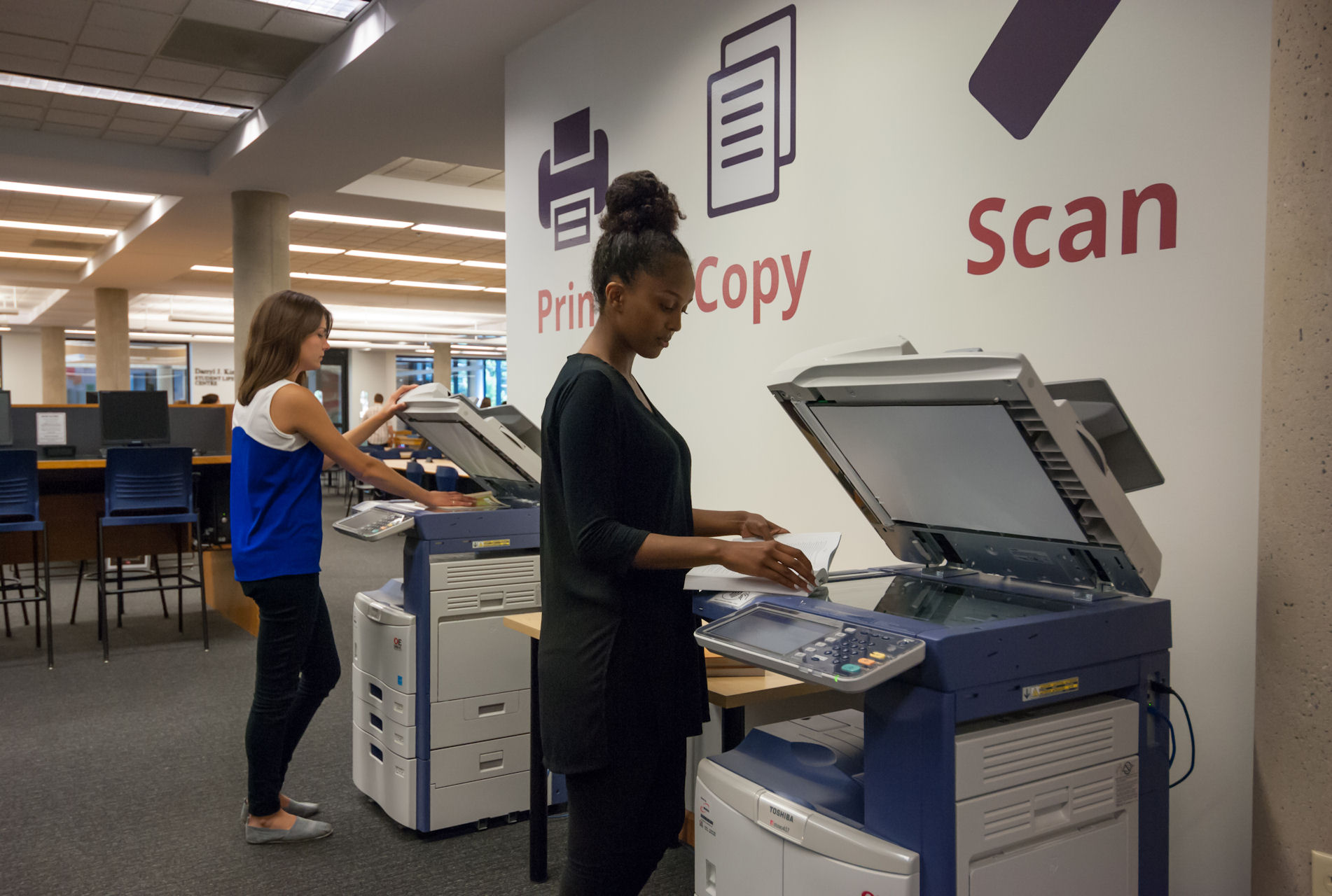
There are four networked printer/copiers on the main floor of the Cardinal Carter Library and one in W022. You use your MyKing's 1Card to get the printer/copies to print, copy and scan. Detailed instructions on these functions are by the machines.
You can get colour copying, colour printing, and overhead transparency printing done at Central Services in Wemple Hall.
Use your MyKing’s 1Card to print or make copies at any of the printer/copiers. The cost is 0.10¢ per page. You can add funds to your 1Card using a debit or credit card by following these instructions. To add funds using cash or a debit card, please come to the Library Service Desk.
If you have any problems with the printer/copiers operation or performance, please inform staff at the Service Desk.
Refunds are not available for amounts added to temporary print cards, copies, or printed documents.
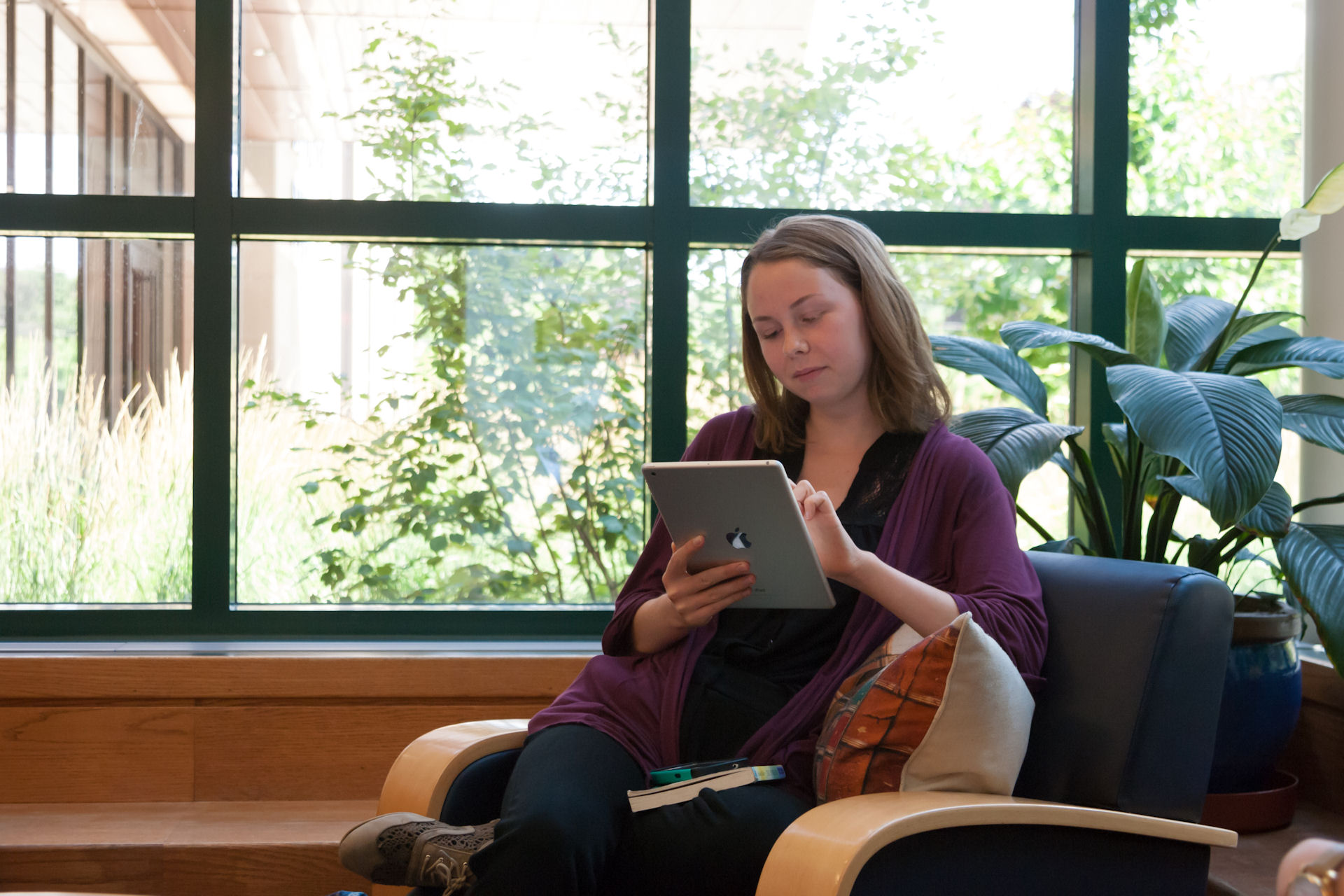
The Cardinal Carter Library and all public areas of King’s University College have wireless access. For information on connecting to Western’s wireless network please see the Information Technology Services help page: http://wireless.uwo.ca/.
The recommended 'encryption type' for uwosecure-v2 is AES. However, some laptops may not be able to support this encryption type due a limitation of their network card. In these cases you may want to try and connect using TKIP. Please see Wireless How do I…’s for more information.
For connectivity support within the Library speak with the Library staff. For other areas of campus contact King’s Information Technology Services at helpdesk@kings.uwo.ca.
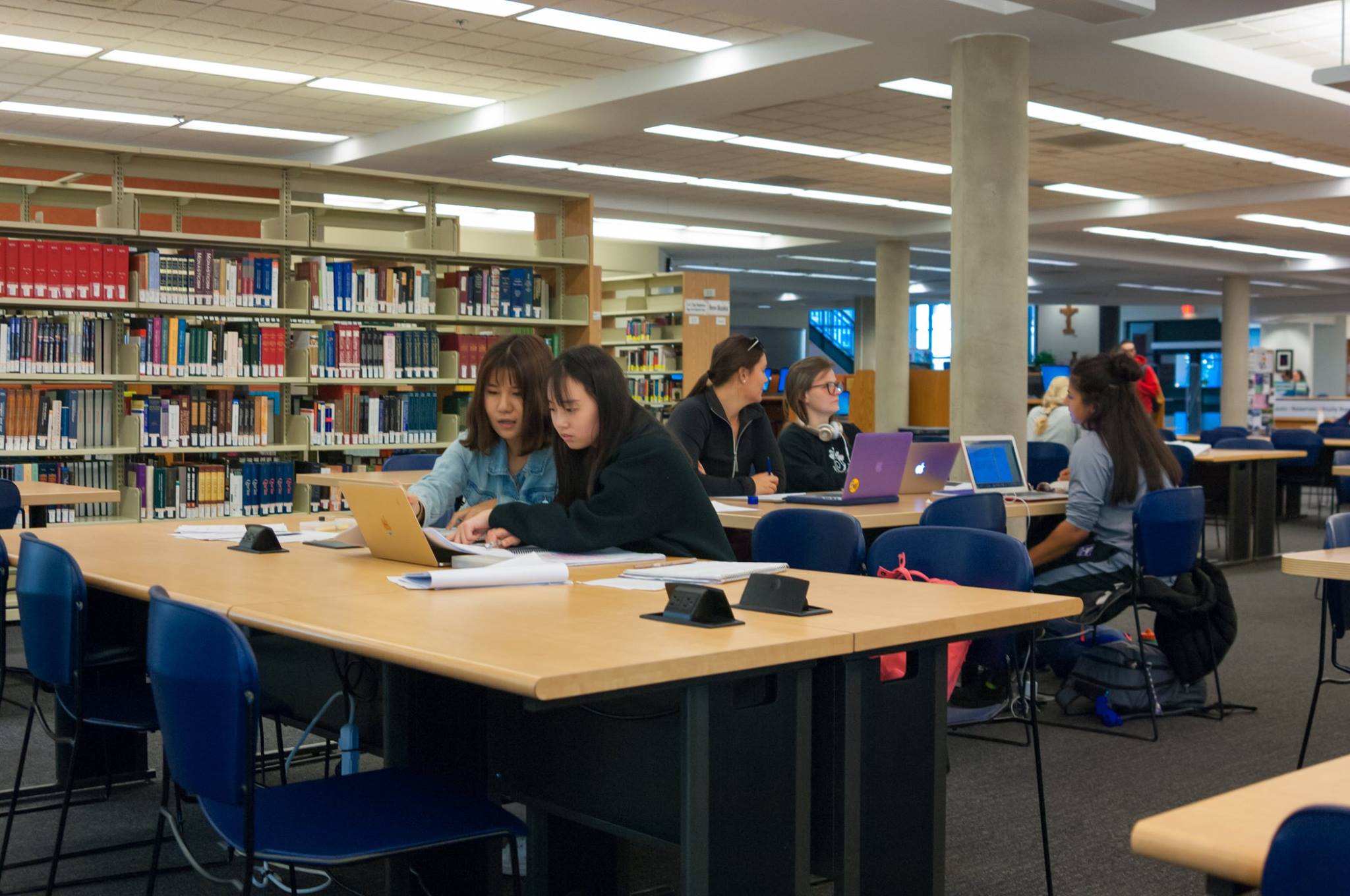
Wireless printing is available in the Cardinal Carter Library from any of the four print stations, as well as the station in the King Centre and in Wemple 022. All browsers and operating systems are supported.
To print, open a web browser and go to the Papercut Web Print site.
Choose "Web Printing" from the options on the left of the screen.
You will be prompted to enter your Login ID and Password. Your Login ID is your UWO username; Password is the password you use for your UWO e-mail.
You should now be on a summary screen that displays a user's account balance and allows a user to print, add funds, and view queued print jobs. Select "Web Print" from the menu bar on the left.
Go to any of the print stations and log in to print your document.